
Best IPTV App for Smart TV in 2026: IBO Player Pro vs OTT Navigator vs UHF
August 26, 2026 · 9 min read
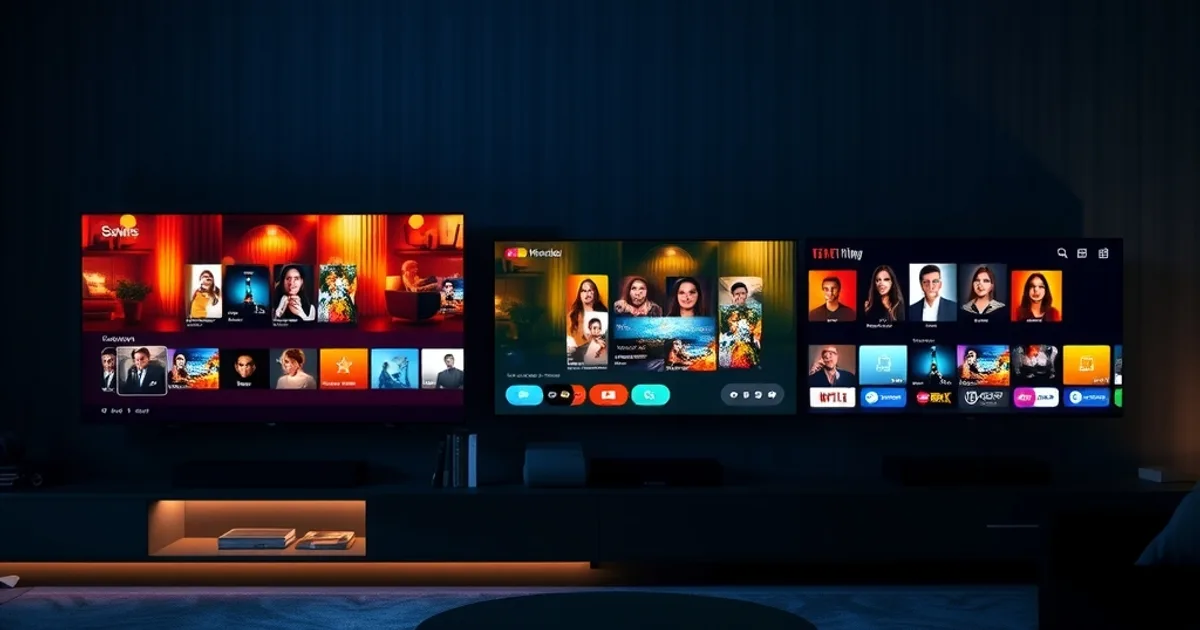
For years, "best IPTV app" meant one generic answer that got typed into every guide regardless of what television you actually owned. That's changing fast. IBO Player Pro's move onto the Samsung Tizen Store and the LG Content Store in 2026 marks a real shift — away from sideloaded, one-size-fits-all Android players and toward apps built specifically for each TV platform's app store, remote, and hardware decoder. If you're still installing the same app on your Samsung that you'd use on a Firestick, you're likely leaving stability and picture quality on the table.
This matters more than it sounds like it should. A native app talks directly to your TV's decoder chip, its own remote-control API, and its own background-process rules. A generic Android APK sideloaded onto an Android TV box has to work around all of that. The practical result: fewer freezes during a match, faster channel changes, and an app that survives a firmware update instead of breaking on it. Search interest in "best IPTV app 2026" has been climbing as more households finish the cable-to-streaming switch and start noticing that not every app behaves the same way on every screen.
This guide breaks the decision down by brand — Samsung, LG, Android TV, Firestick — and tells you which app fits which screen, why, and what to do when the app you already have starts misbehaving. If you haven't set up your devices yet, our full walkthrough at /blog/apollo-iptv-devices-setup covers the Apollo-specific steps for each platform.
Why Native Smart TV Apps Matter in 2026: Speed, Stability, Longevity
"Native" isn't marketing language here — it describes a real technical difference. An app built for Tizen (Samsung) or webOS (LG) is compiled against that platform's own SDK, which means it can use the TV's hardware video decoder directly, respect the platform's memory limits, and get first-party support when the manufacturer pushes a firmware update. An Android app that's been sideloaded onto a smart TV, or run through a generic Android TV shell, doesn't get any of those guarantees — it's working around the platform, not with it.
The three things viewers actually notice are speed of channel zapping, resistance to crashes during long viewing sessions (a full match, a weekend of playoff coverage), and how the app behaves after the TV updates itself overnight. Native apps tend to win on all three because the manufacturer's own app store reviews them for exactly those behaviors before listing them. A sideloaded APK skips that review entirely.
The trade-off is choice: native app stores are curated, so you won't find every IPTV player there. That's exactly why the app-per-brand approach matters in 2026 — instead of hunting for one app that claims to work everywhere, you pick the one built for your TV's store, and treat everything else as a fallback rather than a first choice.
Not sure which app fits your exact TV brand? Ask us directly and we'll point you to the right one.
IBO Player Pro: Native on Samsung Tizen and LG WebOS
IBO Player Pro's 2026 listings in the Samsung Tizen Store and LG Content Store are the headline development for smart TV owners this year. Instead of sideloading a file through a USB stick or a developer-mode workaround, Samsung and LG users can search for it directly in their TV's own app store and install it the same way they'd install Netflix or YouTube. That alone removes the single most common failure point in IPTV setup — a botched sideload that leaves half-installed files on the TV.
Once installed, IBO Player Pro handles Xtream Codes and M3U playlists, pulls EPG data when your provider supplies it, and supports catch-up/VOD where the playlist includes it. Because it's a native listing, it also inherits the TV's own remote-control mapping out of the box — no need to pair a second remote or install a companion phone app just to navigate menus.
The practical limitation to know about: EPG completeness depends entirely on what your provider's playlist includes, not on the app itself, and very old Tizen/webOS TV models (roughly pre-2018) may not appear in the store listing at all, in which case Android TV or Firestick becomes the fallback path. For most households buying or already owning a Samsung or LG smart TV from the last several years, though, this is now the shortest path from box to first channel.
OTT Navigator: The Android TV and Firestick Specialist
If your setup is an Android TV box, a Google TV device, or a Fire TV Stick, OTT Navigator remains the strongest fit in 2026. It's built for the Android TV interface specifically — grid-based channel browsing, D-pad-friendly menus, and genre-based sorting that makes sense on a ten-foot screen rather than a phone screen. Viewers who've used TiviMate will find OTT Navigator's layout philosophy familiar; our full breakdown at /blog/tivimate-vs-iptv-smarters-pro-comparison-2026 covers how these Android-first players compare on functionality if you're deciding between the two ecosystems.
OTT Navigator's standout feature set includes multi-playlist support (useful if you keep a backup source), timeshift, picture-in-picture, and a "studio mode" that tiles several streams at once — genuinely useful during a weekend with overlapping fixtures. It supports both M3U and Xtream Codes, and its EPG engine is one of the more configurable ones available, letting you merge guide data from multiple sources rather than relying on a single feed.
The catch is platform fit: OTT Navigator is an Android app first, which means Samsung and LG owners would have to sideload it outside the manufacturer's store — exactly the workaround that native apps now let you skip. If you're on an Android TV box or Firestick, though, it's a direct install from the Play Store or Amazon Appstore with no workaround required, which keeps it firmly in the "native for its platform" category.
UHF: Speed and Design for Power Users
UHF built its reputation on Apple platforms — iPhone, iPad, Apple TV, Mac — where its interface and playback speed are consistently the fastest of the players available. It has since expanded to Samsung and LG's app stores and to Android TV, and that speed advantage carries over: channel switching feels closer to a cable box than to a buffering stream, and the interface itself is noticeably more polished than most free IPTV players, with fast search, watch-position memory across devices, and a clean grid that doesn't bury channels under menus.
UHF also supports DVR-style recording and picture-in-picture, and its cross-device sync means a channel or VOD title you start on your phone can resume on the TV without hunting through menus again. For Apollo users who split viewing between an iPad during the week and a Samsung or LG TV on weekends, that continuity is the practical selling point — not just raw speed.
Where UHF is thinner than OTT Navigator is in deep EPG customization and multi-source playlist merging — it favors a simpler, faster experience over granular configuration. If you want the fastest, cleanest app and don't need to tinker with guide-data settings, it's a strong pick on any of the platforms it supports. If you want maximum control over sources and guide data, OTT Navigator still has the edge.
Installation by TV Brand: What Actually Happens on Each Screen
On Samsung: open the Tizen app store (labelled "Apps" or "Samsung Apps" on the home screen), search for the app by name, install, then open it and enter your Apollo playlist URL or Xtream credentials in the app's settings. No developer mode, no USB stick, no PIN codes to unlock sideloading.
On LG: the same logic applies through the LG Content Store — search, install, open, enter credentials. WebOS models handle app permissions slightly differently from Tizen, so the first launch may ask for network and storage permissions; accept both, since the app needs them to cache guide data and thumbnails.
On Android TV, Google TV, and Fire TV Stick: search the Play Store (Android TV/Google TV) or Amazon Appstore (Fire TV) for OTT Navigator or UHF directly — both are listed natively on those stores, so again no sideloading is required unless you're chasing a specific version not yet published there.
For the full device-by-device walkthrough, including how to enter your Apollo credentials correctly and where people most often get the playlist URL wrong, see /blog/apollo-iptv-devices-setup.
Performance Showdown: Native Apps vs Generic Android TV Streaming
The clearest way to see the native-app advantage is during peak viewing windows — a Saturday afternoon of football, a Champions League night, a big Premier League fixture. Generic sideloaded setups tend to show their weaknesses exactly then, because they're competing for the TV's resources with background processes the manufacturer's own store would normally manage for them. A native app, by contrast, gets priority access to the decoder and a smaller memory footprint, which shows up as fewer stalls right when the stream is busiest.
This isn't just an app problem, though — network conditions during peak hours matter just as much as which app you're running, and the two compound each other. We cover the network side in detail in /blog/iptv-peak-hours-stable-streaming-sports-2026-27, and if football specifically is your main use case, /blog/premier-league-iptv-streaming-2026-27 walks through what stable matchday streaming actually requires beyond just picking an app.
In practice, the combination that performs best is a native app for your TV brand paired with a wired or 5GHz connection during high-demand windows. Swapping apps won't fix a weak Wi-Fi signal, and a strong connection won't fully compensate for an app fighting the TV's OS for resources — you need both pieces working together.
Multi-Room: One Apollo Account Across Samsung, LG, Firestick, and Phone
None of this means picking one app and using it everywhere. A realistic household setup mixes brands — a Samsung in the living room, an LG in the bedroom, a Firestick on a guest TV, a phone for the commute — and the right approach is to run the best-fit native app on each device while keeping them all pointed at the same Apollo account.
That's exactly what your Apollo subscription is built for: the same credentials work across IBO Player Pro on the Samsung, OTT Navigator on the Firestick, and UHF on a phone or tablet, without needing separate logins or separate playlists per device. Our step-by-step multi-room guide at /blog/apollo-iptv-multiroom-setup covers how to keep simultaneous streams stable across rooms and what to check first if one room lags while another runs fine.
The app choice per room should follow the brand logic above — don't force OTT Navigator onto a Samsung just because it's already installed on the Firestick. Ten extra minutes installing the native app for each screen pays off every time someone changes the channel.
Get set up on the native app for your TV, phone, and every other screen in the house under one account.
Troubleshooting: Crashes, Lag, Signal Loss — and When to Switch Apps
Most app crashes on smart TVs trace back to one of three causes: the app wasn't updated after a TV firmware update, the app's cache has grown too large and needs clearing from the TV's app-management settings, or too many background apps are competing for memory. Before assuming the IPTV app itself is broken, check for a pending app update in your TV's store and clear the cache — that resolves a large share of "it just froze" complaints.
Lag and buffering that happen specifically during peak hours point to network congestion rather than the app — see /blog/iptv-peak-hours-stable-streaming-sports-2026-27 for how to diagnose that distinction. Lag that happens at all times of day, on a stable connection, is more likely an app-and-device mismatch: a sideloaded Android app on an older Tizen model, for instance, will generally lag more than a native install would.
When it's genuinely time to switch apps: if you're on Samsung or LG and still using a sideloaded Android player, migrate to the native store listing first — that alone fixes most persistent stability complaints. If you're on Android TV and want deeper EPG control, move from a generic player to OTT Navigator. If speed and interface polish matter more than configuration depth, UHF is the swap worth trying. In all three cases, your Apollo login carries over — switching apps never means switching subscriptions.
Frequently asked questions
Can I use IBO Player Pro on an older Samsung or LG TV?
It depends on the model year — very old Tizen or webOS TVs (roughly pre-2018) often aren't included in the native store listing. If your TV doesn't show it in search, an Android TV box or Firestick running OTT Navigator or UHF is the practical fallback, connected via HDMI.
Is OTT Navigator better than UHF, or is it the other way around?
Neither is universally better — they optimize for different things. OTT Navigator gives you more control over EPG sources and multi-playlist setups; UHF is faster and cleaner but simpler. Pick based on whether you want configuration depth or speed and polish.
Do I need a different Apollo subscription for each app or device?
No. One Apollo account works across IBO Player Pro, OTT Navigator, and UHF, and across every device you install them on. You're choosing the app per screen, not per subscription.
Why does the same app perform differently on my Samsung TV versus my Firestick?
Each platform has its own decoder hardware, memory limits, and background-process rules. An app native to one platform's store is built and tested against that platform specifically, which is why the same app name can feel fast on one device and sluggish on another.
My app was working fine and suddenly started crashing after a TV update — what changed?
TV firmware updates occasionally change how apps are allowed to access memory or the decoder, and an app that hasn't published its own compatible update yet can start crashing as a result. Check your TV's app store for a pending update to the IPTV app itself before troubleshooting anything else.
Should I sideload an app if it's not in my TV's native store?
Only as a last resort. Sideloading skips the manufacturer's compatibility review and tends to be less stable and slower to update than a native install. If the app you want isn't listed for your TV brand, it's usually better to pick a different app that is native to that platform.
Read next: the pricing page or the FAQ.